Move your customers from Fresha or Timely
Download your customer list from the system you use now, then bring it into DoQ. It takes about five minutes, and nothing is saved until you have checked it.
Download your list from Fresha
You need to be the account owner (or have permission to see clients) in Fresha.
- 1
Open Clients
Sign in to Fresha on a computer and open Clients from the menu on the left, then the client list.
Drawing of the screen. The real menu may look a little different. - 2
Press Options
At the top right of the client list, press Options.
Drawing of the screen. The real menu may look a little different. - 3
Choose Export as CSV
Pick Export as CSV (not Excel or PDF). The file is saved to your Downloads folder.
Drawing of the screen. The real menu may look a little different.
Download your list from Timely
Reports are only open to Timely users who are allowed to see them, usually the owner.
- 1
Open Reports
Sign in to Timely on a computer and open Reports from the menu at the top.
Drawing of the screen. The real menu may look a little different. - 2
Choose Customer List
Under Customers, choose Customer List. Set the filter to all customers so nobody is left out.
Drawing of the screen. The real menu may look a little different. - 3
Press CSV
Press the CSV button. The file is saved to your Downloads folder.
Drawing of the screen. The real menu may look a little different.
Bring the file into DoQ
- 1
Open Customers, press Import
In DoQ, open Customers and press Import. Only the shop owner sees this button.

- 2
Choose the file
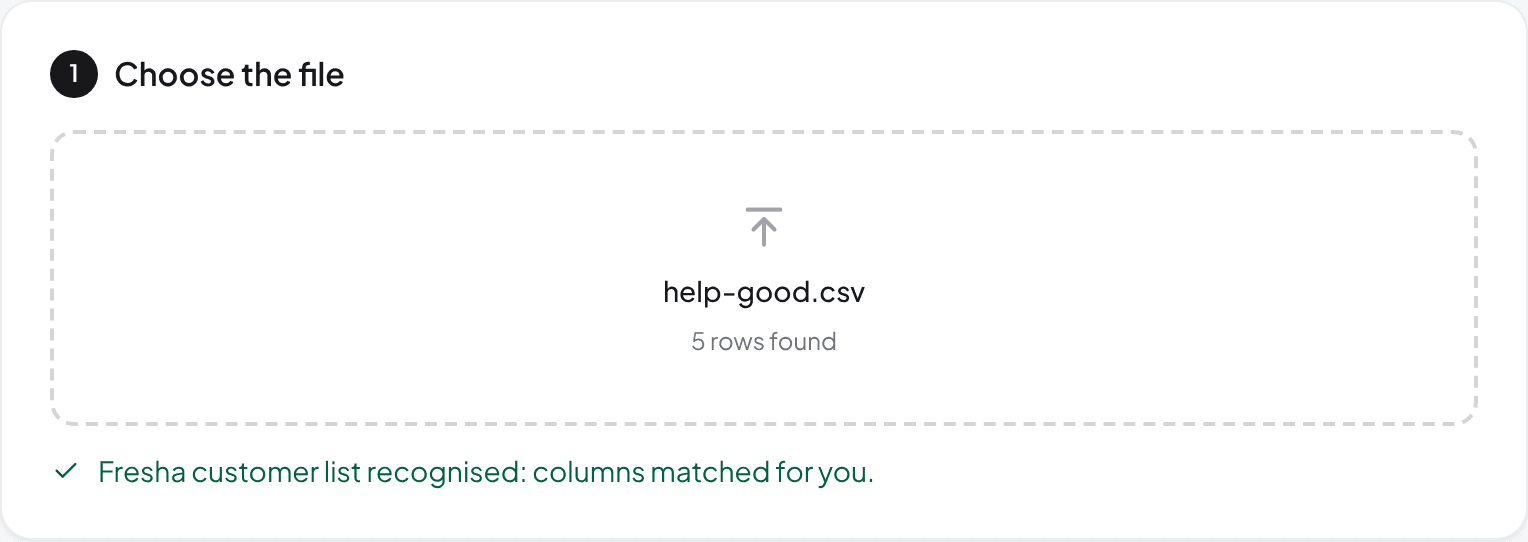
Drag the CSV file in, or press to pick it. DoQ recognises files from Fresha and Timely and matches the columns for you.
- 3
Check the columns
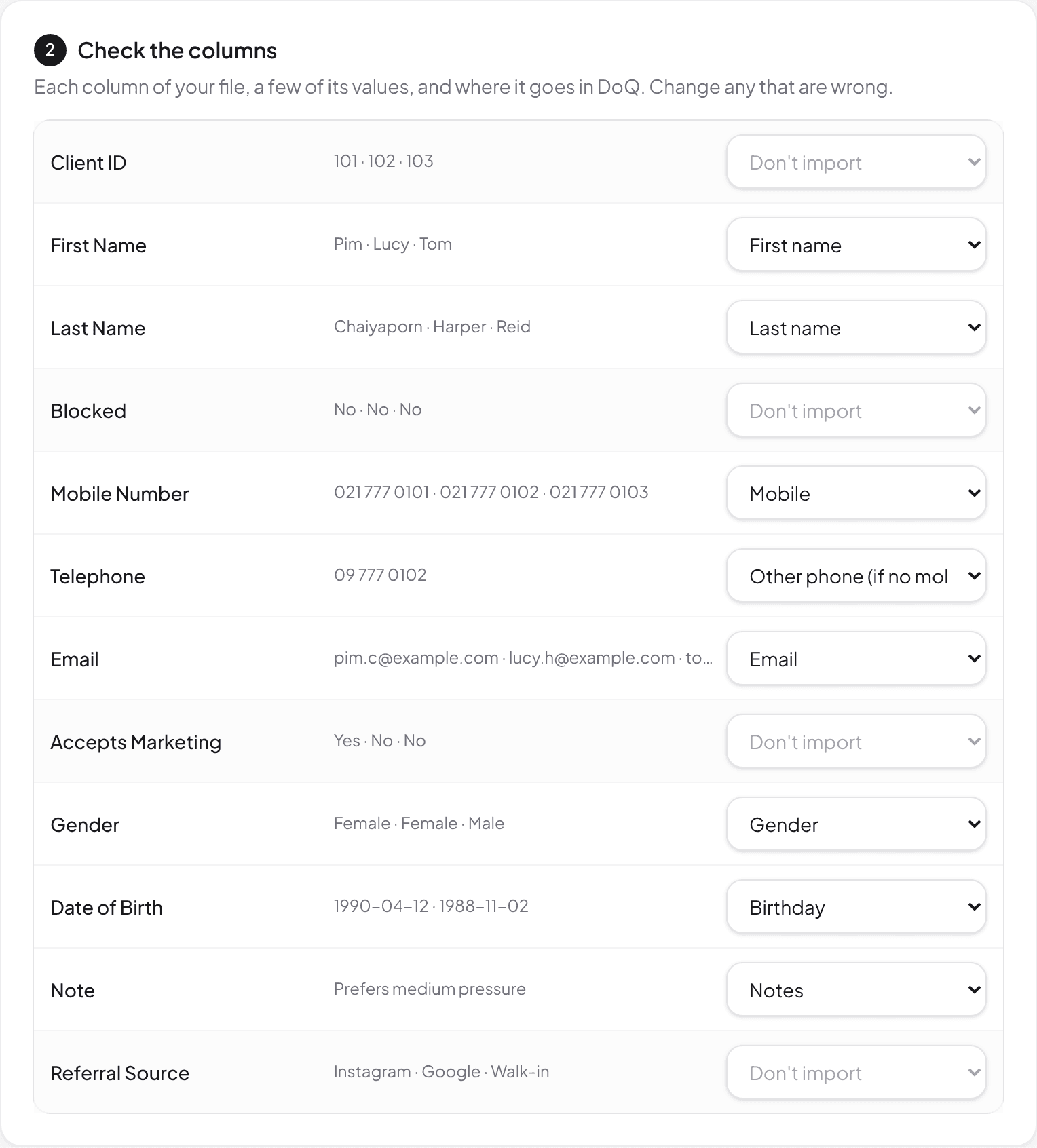
Each column of your file shows a few of its values and where they will go in DoQ. If one is wrong, change it in the list on the right.
- 4
If something is in the wrong column
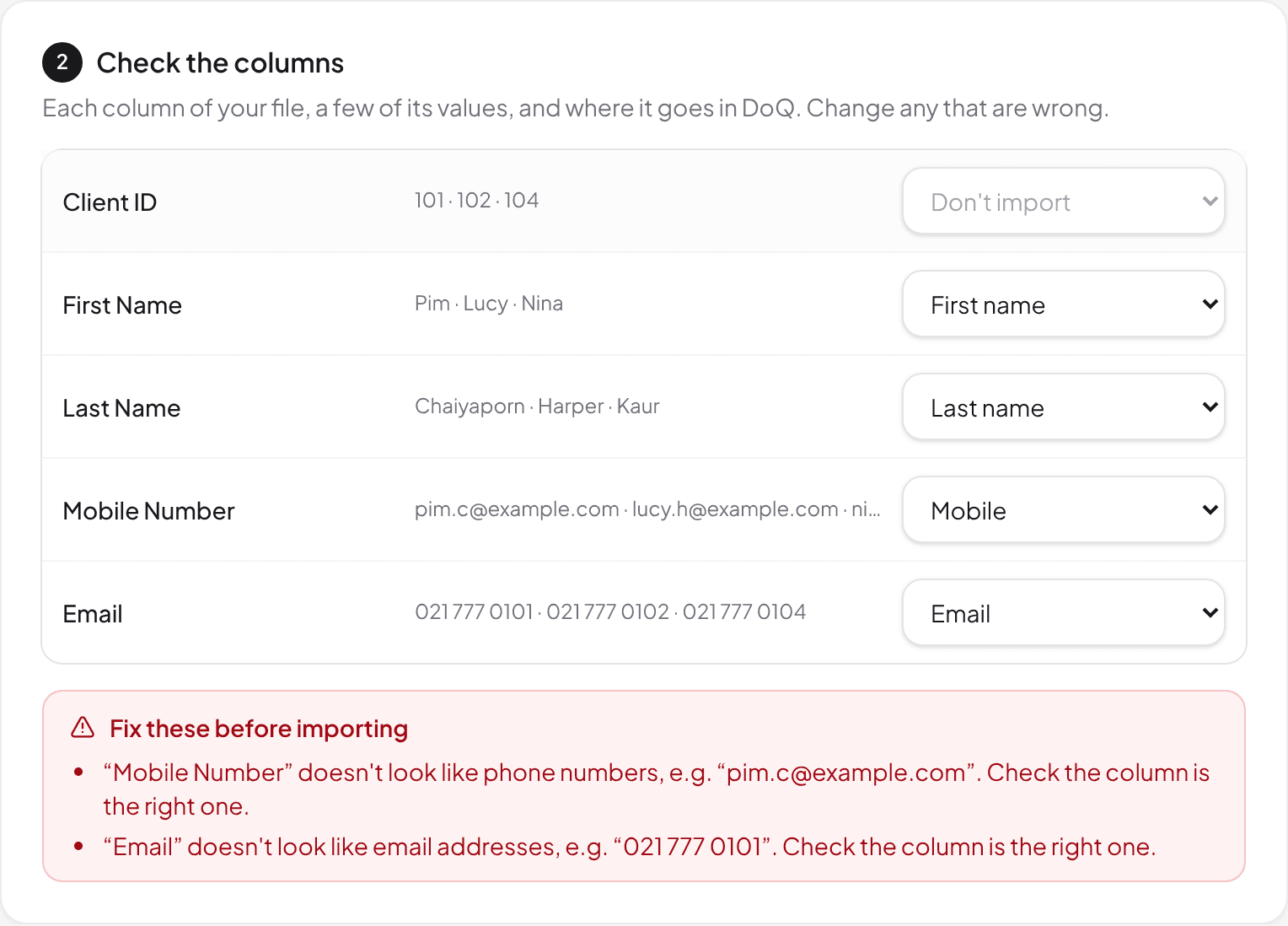
DoQ checks the values themselves. If, for example, the Mobile column holds email addresses, it says so and won't import until it is fixed.
- 5
Check the customers, then import
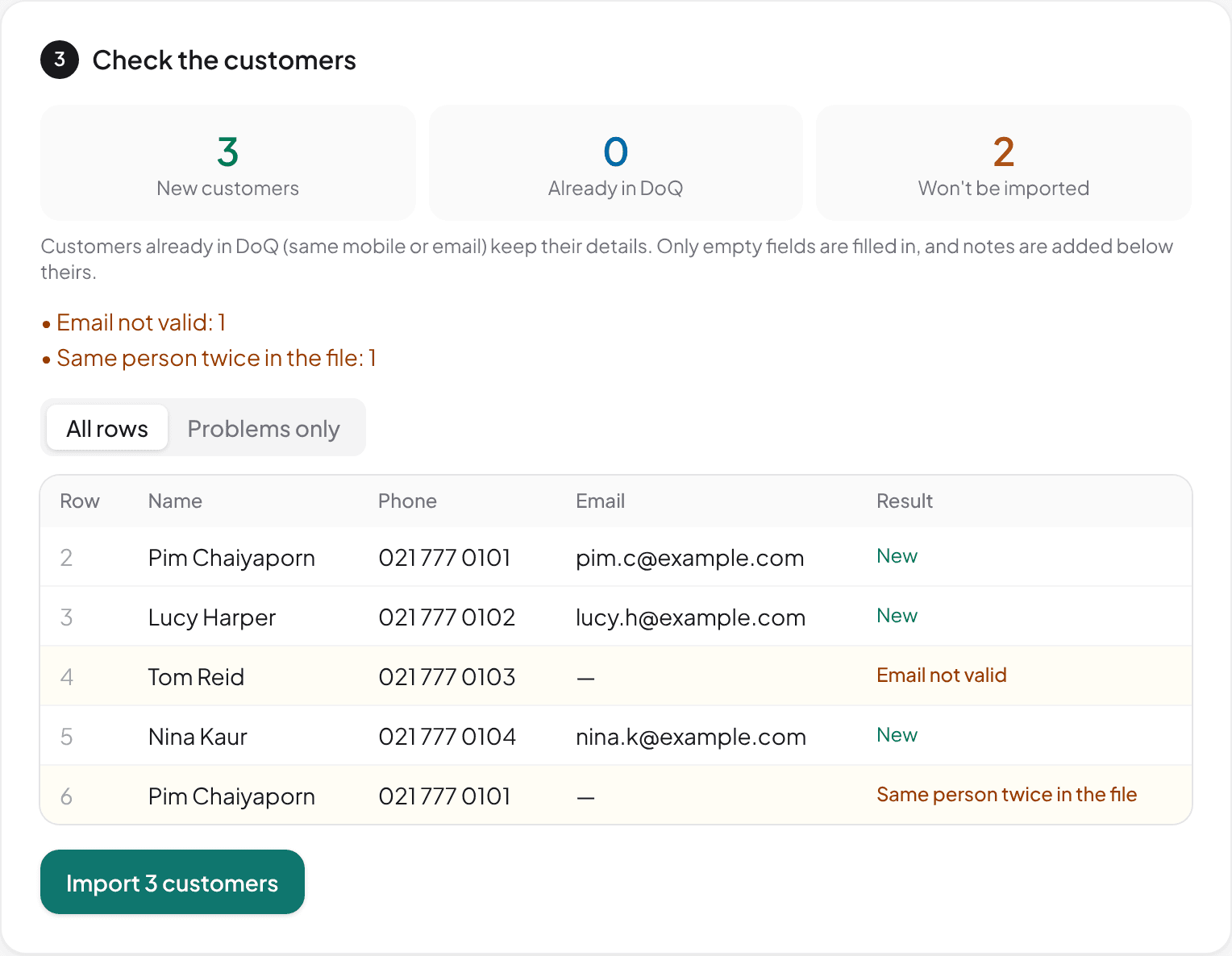
You see how many are new, how many are already in DoQ and which rows can't be imported and why. Press Import when it looks right.
Good to know
- Customers already in DoQ
A customer with the same mobile number or email is not added twice. DoQ only fills in what is missing (email, birthday, gender) and adds the file's notes below yours. Nothing you already have is overwritten.
- Birthdays
Most date styles are understood (2/3/1985, 1985-03-02, 2 Mar 1985). A birthday without a year is kept in the customer's notes.
- Rows that are skipped
Rows with no name, no phone or email, a phone or email that isn't valid, or the same person twice in the file. You see each one, with the reason, before importing.
- Excel files
If your file is .xlsx, open it in Excel or Google Sheets and save it as CSV (UTF-8) first, so Thai names come through correctly.
- Your customers stay yours
Imported customers are only seen by your shop and its branches. Up to 50,000 customers per file; big lists go in by themselves, part by part.
Move your customers from Fresha or Timely
Go to Import